
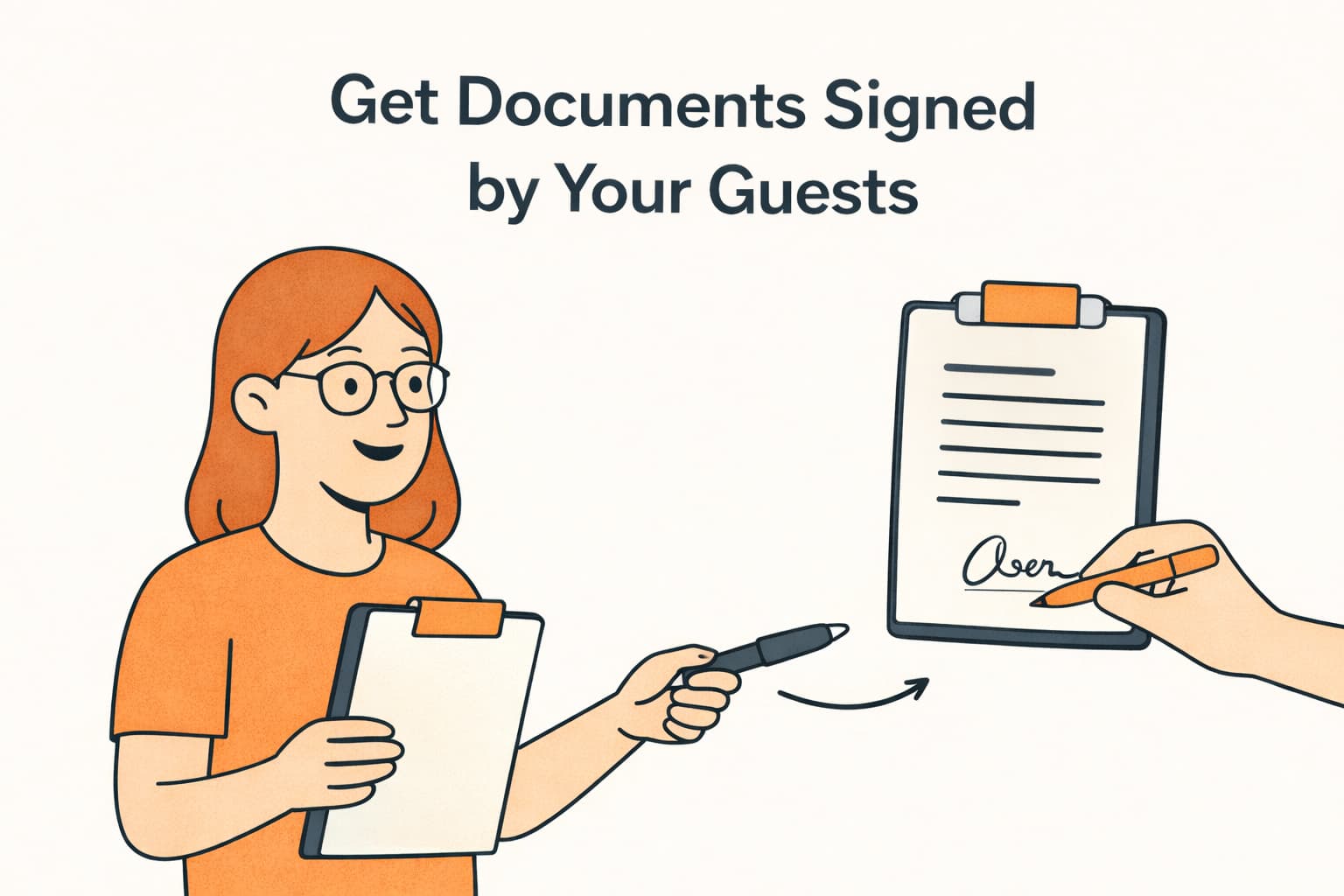
Some documents need more than just being shared — they need a signature. Rental agreements, liability waivers, community rules — with Mangobeds, you can request signatures on any document attached to a booking, and your guests can sign them directly from the Guest Portal.
How It Works
The signing flow in Mangobeds is straightforward:
- You request a signature — from the booking’s Documents tab, select a document and click Request Signing
- The guest signs it — the guest opens the Guest Portal, sees the document marked as pending, and signs it right there
- You see it’s signed — the document status updates to Signed, and the signed version replaces the original
No printing, no scanning, no email attachments back and forth.
Requesting a Signature
- Open the booking and go to the Documents tab
- Find the document you want signed — this can be a document you uploaded or one generated from a template
- Open the document menu and click Request Signing
- The document status changes to Pending
The guest will see the pending signature request the next time they visit their Guest Portal.
The Guest Experience
From the guest’s perspective, signing a document is simple:
- The guest opens the Guest Portal and navigates to their booking
- They go to the Documents section
- Documents that need signing are clearly marked with a Signing Pending badge
- The guest clicks Sign Document, reviews the document, signs it, and uploads the signed version
- Done — the status updates to Signed for both the guest and the property manager
Tracking Signing Status
Every document shows its current signing status:
- No badge — no signature needed, this is a regular document
- Pending (yellow) — you’ve requested a signature and the guest hasn’t signed yet
- Signed (green) — the guest has signed the document
You can see these statuses at a glance in the Documents tab of any booking.
Cancelling a Signature Request
Changed your mind? You can cancel a pending signature request:
- Open the document menu
- Click Cancel Signing Request
- The document goes back to its normal state with no signing requirement
Common Use Cases
- Rental Agreements — have guests sign before check-in
- Liability Waivers — required for properties with pools, gyms, or adventure activities
- Community Rules — make sure guests acknowledge the house rules
- Long-stay Contracts — formalize extended stay arrangements
- Damage Deposits — document deposit terms with a guest signature
Tips
- Generate, then sign — use Document Templates to generate a pre-filled agreement, then request a signature on it. This gives you a complete signed document with all the booking details.
- Check before check-in — review the Documents tab before the guest arrives to make sure all required documents are signed.
- Keep it organized — use clear file names so you can quickly find what you need (e.g., “Rental Agreement – Maria Silva”).
- Learn more about managing documents in Mangobeds