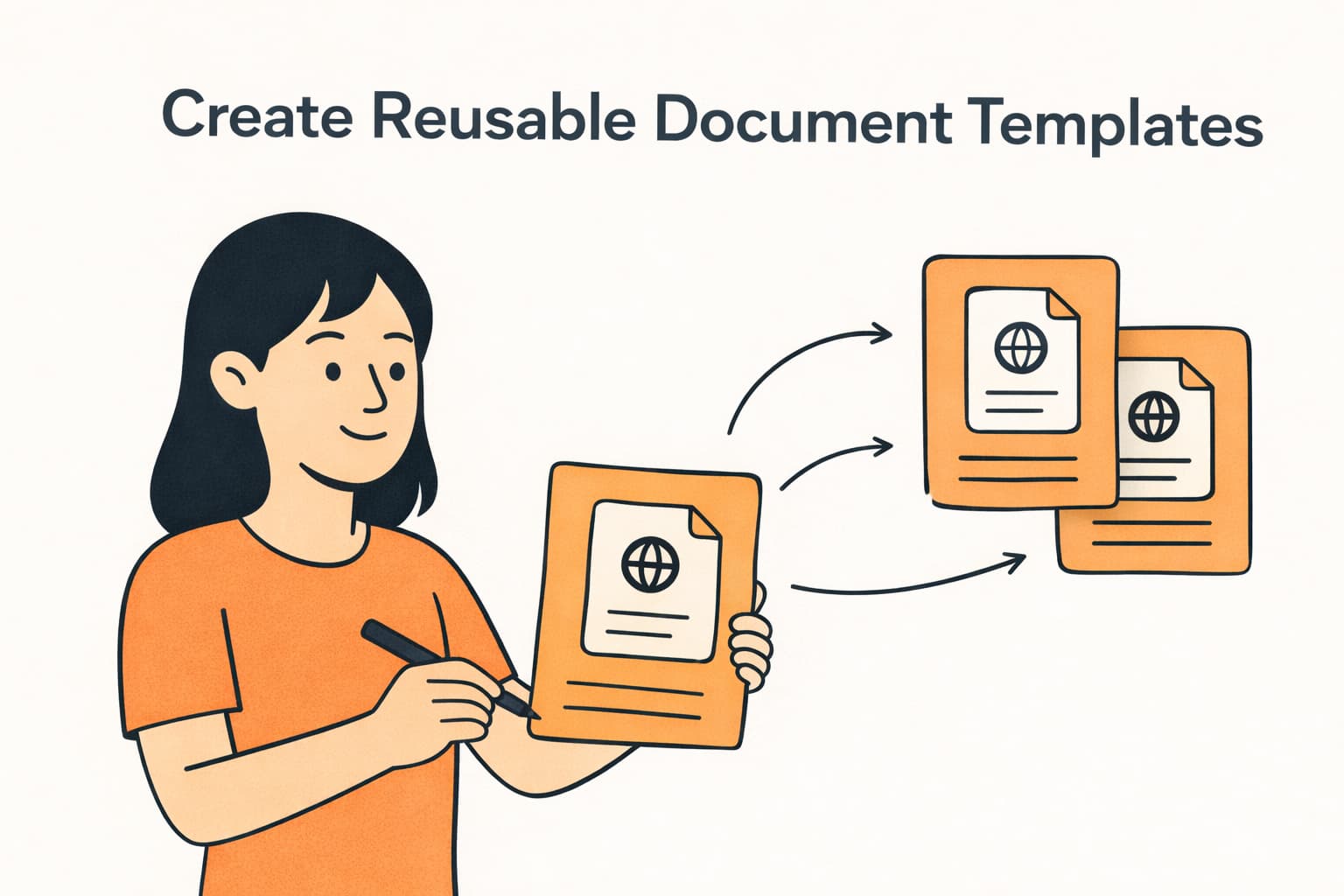
Rental agreements, community rules, liability waivers, check-in instructions — if you’re creating these documents manually for every booking, you’re spending time you don’t need to. With Document Templates in Mangobeds, you create a document once and generate it for any booking, automatically filled with the guest’s details.
What Are Document Templates?
A document template is a reusable document that you design once for your property. It can contain variables — placeholders like the guest’s name, check-in date, or total price — that get replaced with real booking data every time you generate a document.
For example, a rental agreement template might include:
This Rental Agreement is entered into by {{GUEST_NAME}} for the unit {{UNIT_NAME}} at {{PROPERTY_NAME}}, located at {{PROPERTY_ADDRESS}}.
The rental period begins on {{CHECK_IN_DATE}} and ends on {{CHECK_OUT_DATE}}, for a total amount of {{TOTAL_PRICE}}.
When you generate this template for a specific booking, Mangobeds fills in all the details automatically and creates a PDF that’s attached to the booking.
How to Create a Template
- Go to your property’s Apps section
- Open the Documents app
- Click New Template
- Choose a starting point:
- Blank Template — start from scratch
- Rental Agreement — a pre-built template for standard rental contracts
- Community Rules — a pre-built template for house rules and guidelines
- Give your template a name
- Write your content using the rich text editor — add headings, lists, bold text, and variables
- Click Save
Using Variables
Variables are placeholders wrapped in double curly braces. When you generate a document, Mangobeds replaces them with the actual booking data.
Here are the available variables:
| Variable | Description | Example |
|---|---|---|
{{GUEST_NAME}} | Full name of the main guest | Maria Silva |
{{GUEST_EMAIL}} | Email of the main guest | maria@example.com |
{{CHECK_IN_DATE}} | Check-in date | 15/03/2026 |
{{CHECK_OUT_DATE}} | Check-out date | 22/03/2026 |
{{UNIT_NAME}} | Name of the booked unit(s) | Room 4, Room 5 |
{{TOTAL_PRICE}} | Total booking price with currency | 850.00 EUR |
{{PROPERTY_NAME}} | Your property’s name | Sunrise Coliving |
{{PROPERTY_ADDRESS}} | Your property’s full address | Rua da Alegria 42, Lisbon |
{{BOOKING_ID}} | Unique booking identifier | clx7abc123 |
{{BOOKING_CREATED_DATE}} | Date the booking was created | 01/03/2026 |
To insert a variable, click the Variables button in the editor toolbar and select the one you need — it will be copied to your clipboard so you can paste it wherever you want in the template.
Previewing Your Template
Before saving, you can switch to Preview mode to see how your template will look with sample data filled in. This helps you make sure the layout and variable placement look right before generating real documents.
Generating a Document from a Template
Once your templates are ready, generating a document for a specific booking takes seconds:
- Open the booking
- Go to the Documents tab
- Click the Generate from Template button
- Select one of your property’s templates
- Mangobeds generates a PDF with all the variables filled in and attaches it to the booking
The generated PDF is immediately available in the booking’s Documents tab — both for you and the guest through the Guest Portal.
Ideas for Templates
Here are some common templates that property managers create:
- Rental Agreement — terms and conditions for the stay, signed by the guest
- Community Rules — house rules, quiet hours, shared space guidelines
- Liability Waiver — for properties with activities or shared equipment
- Check-in Instructions — access codes, directions, welcome information
- Invoice Summary — a formatted summary of charges for the stay
- Long-stay Contract — extended stay terms with monthly rates and notice periods
What’s Next?
After generating a document, you can request a signature from your guest — they’ll be able to sign it directly from the Guest Portal. Or learn more about managing documents in Mangobeds