
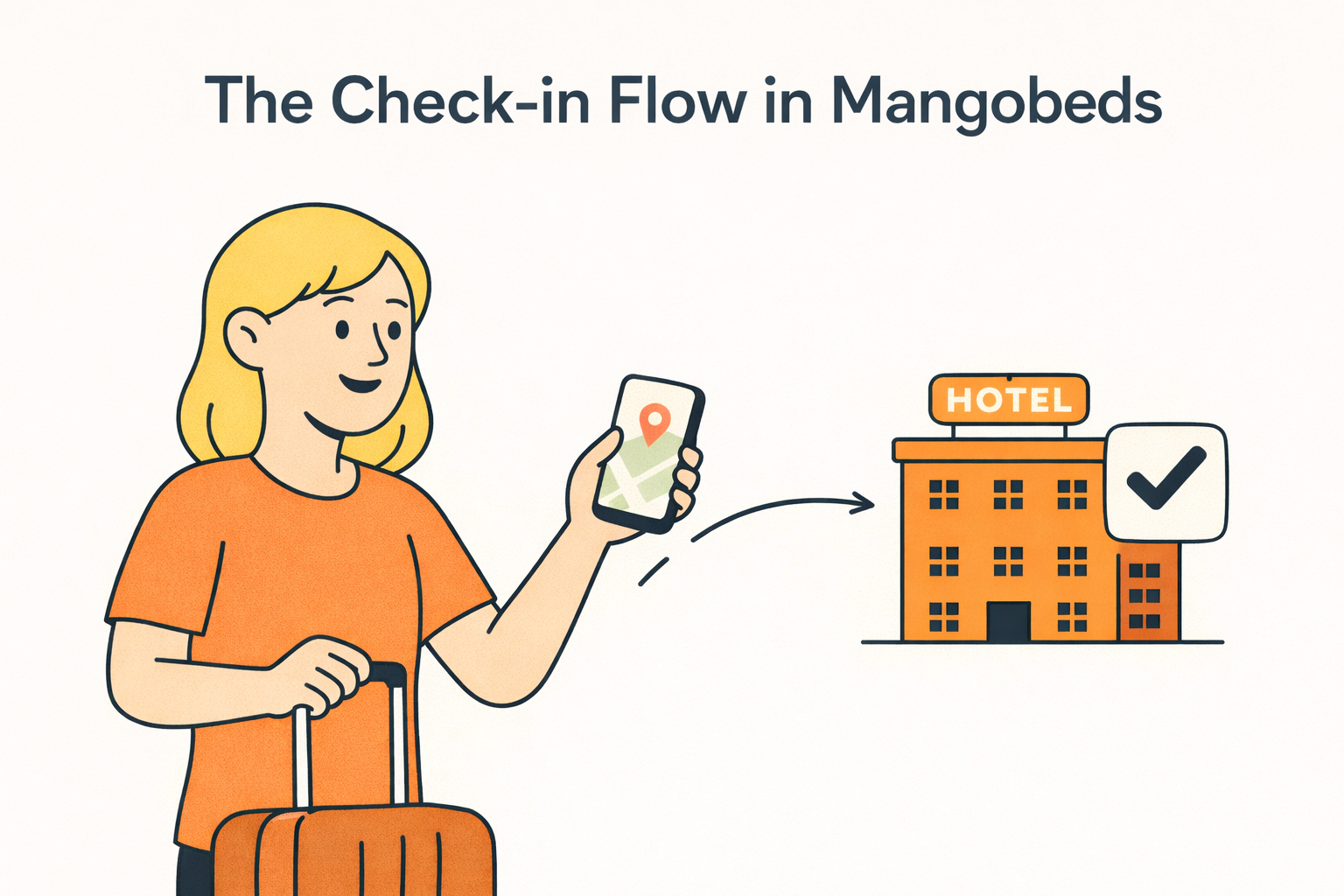
Every property needs certain information from guests before they arrive — passport numbers, ID documents, emergency contacts, dietary preferences. Mangobeds lets you collect all of this through an online check-in flow that guests complete from the Guest Portal, so you don’t have to chase anyone over email or handle it at the door.
How It Works
The check-in flow is built around custom guest fields — fields you define for your property. You choose which ones guests need to fill in before check-in, and Mangobeds handles the rest:
- You set up the fields — go to the Guest Portal settings and enable check-in. Select which custom guest fields are required — passport number, date of birth, nationality, or anything else you need.
- The guest receives a link — the guest opens the link, navigates to their booking, and sees a Check-in card with the fields they need to complete.
- The guest fills in their details — each guest in the booking fills in the required fields. Once everything is complete, they submit the check-in.
- You see the results — the guest’s details are saved to their profile and the check-in is recorded in the booking activity log.
No paper forms, no spreadsheets, no back-and-forth messages.
Setting Up Check-in
Open your property’s Apps section and go to the Guest Portal settings.
- Toggle Online check-in on
- Click Manage to select which custom guest fields guests need to fill in — you can also create new fields from here
- Save your settings
That’s it. Any guest who visits their booking in the Guest Portal will now see the check-in option.
The Guest Experience
From the guest’s perspective, check-in is straightforward:
- The guest opens the Link and navigates to their booking
- They see a Check-in card alongside their booking details
- They click it, fill in the required fields for each guest in the booking, and submit
- Done — the details are saved and the property manager is notified
All fields are pre-filled if the guest has completed them before, so returning guests don’t have to re-enter the same information.
Custom Guest Fields
The check-in flow uses the same custom guest fields available across Mangobeds. You can create fields of different types:
- Text — for passport numbers, nationalities, special requests
- Number — for ages, document numbers
- File — for ID scans, passport photos, visa documents
- Select — for predefined options like dietary preferences or room preferences
Fields can be marked as required, so guests can’t submit the check-in without completing them.
These are the same fields you can include in your Booking Forms — so if you’d rather collect some of this information at the time of booking instead of at check-in, you can. Use the booking form for the basics and the check-in flow for what you need closer to the arrival date.
Automate It
You don’t have to wait for guests to find the check-in page on their own. Use Mangobeds automations to send a check-in reminder at the right time:
- Set up an email automation that sends a message with the Guest Portal link a few days before check-in
- Include the check-in link in your booking confirmation email
- Use WhatsApp notifications to send a reminder with the link directly to the guest’s phone
This way, guests complete their check-in before they arrive — and you don’t spend time reminding them.
Connect with Third-Party Services
For properties that need to report guest data to local authorities or comply with specific regulations, Mangobeds connects with third-party services through integrations and automations. You can:
- Forward guest check-in data to police reporting systems or government portals
- Sync guest information with identity verification services
- Connect with property management tools that handle compliance, reporting, or additional guest processing
These integrations mean Mangobeds handles the guest-facing part — collecting the data securely — while your connected tools handle what comes next.
Getting Started
To set up the check-in flow, go to your property’s Apps section, open Guest Portal, and toggle on Online check-in. Select your fields, save, and your guests can start checking in from the Guest Portal right away.